
Verify emails in Google Sheets
Is your contact list in Google Sheets? The Email Checker add-on verifies the addresses and writes the results next to your data, so you can clean the list before the campaign.
On Google Workspace Marketplace · Connect with your Google account, no API key · 200 free verifications on new accounts
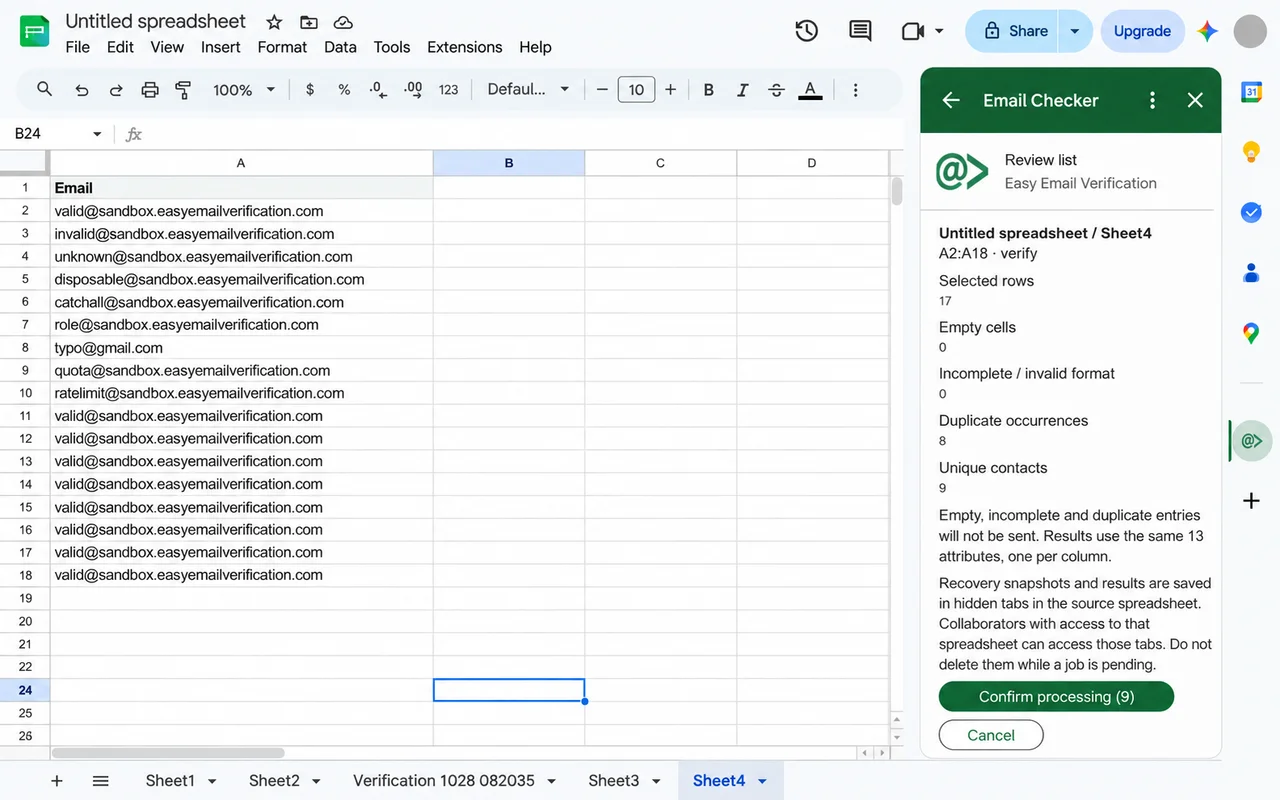
Review before verifying: empty cells, invalid format, duplicates and unique contacts
How to verify an email list in Google Sheets
Install and connect
Install the add-on from Google Workspace Marketplace, open your spreadsheet, click Email Checker in the side panel and connect your Google account.
Select the emails and review
Pick the email column or use the current selection. The review shows empty cells, invalid format, duplicates and unique contacts. Only unique, well-formed addresses are sent.
Verify and clean the list
Confirm processing and open the results next to your emails. Create safe contact list builds a separate sheet with the contacts marked Safe To Send.
Each address gets 12 result columns beside your emails: Safe To Send, Result, Reason, User, Domain, Disposable, Accept All, Role, Free, mail server (MX) information and a suggested correction when available. Check the output columns in the summary and keep them free.
What to do with each result
Unknown is not invalid: it means no reliable conclusion was reached about that mailbox. What every result and reason means.
| In the spreadsheet | What it means | What to do before the campaign |
|---|---|---|
valid | The mail server accepted the address. | Send when Safe To Send is TRUE. If it is FALSE, check the risk columns, such as Disposable. |
invalid | The address or its domain does not exist, or the server rejected it. | Remove it. These are the addresses that bounce. |
unknown | The server did not answer reliably: timeout, block or error. | Keep it apart and verify it again later. |
accept_all | Catch-all domain: it accepts any address. The result is unknown. | Send in a separate segment and watch the bounces. |
Did You Mean | A likely typo, with the suggested correction. | Fix the address instead of deleting the contact. |
A simple rule: send to rows with Safe To Send TRUE, remove invalid, and set your own policy for unknown and catch-all.
Made for lists that live in spreadsheets
No export, no upload
The results stay in the same spreadsheet, next to names, companies and the other columns of your list.
No duplicate charges in a run
Repeated addresses are verified once per run. Empty and malformed cells are left out before anything is sent.
Large lists with history
Large lists are processed in sequential batches, subject to your credits and service limits, with a history of each run. Privacy policy.
FAQ
Is the Google Sheets add-on free?
Installing it costs nothing, and new accounts get 200 free verifications. After that, verifications use the credits or allowance of your Easy Email Verification account. See plans and credits.
Do I need an API key?
No. You connect with your Google account.
How should I organize the sheet?
The simplest way is an "Email" header in row 1 and one address per row from row 2. The add-on can also create a template. Before confirming, check the columns where the results will be written.
Where is my data kept?
The selected unique addresses are sent to Easy Email Verification. Recovery data and results are saved in hidden tabs of your spreadsheet, which collaborators with access to it can see. Do not delete them while a job is pending.
In which languages is the add-on?
English, Português, Español, Italiano, Français and Deutsch.
Can I verify a list without Google Sheets?
Yes. Use the Excel add-in or upload a CSV or TXT file with bulk email verification.
Clean your spreadsheet before the next campaign
Add Email Checker to Google Sheets, connect your Google account and verify your first column of emails.
Get the Google Sheets add-on