
Your platform says 98% delivered. Your open rate says something else. Both can be true, because “delivered” only means the receiving server accepted the message. It says nothing about where it went next. The open rate doesn’t settle it either: features such as Apple Mail Privacy Protection and automated systems can record opens without anyone reading the message.
An inbox placement test answers the question another way. You send your real campaign to a list of test mailboxes at Gmail, Outlook and other providers, and you see where each copy landed: the main inbox, a tab such as Promotions, or spam. This post shows how the test works in Easy Email Verification, how to read the result and what it can’t tell you.
Table of Contents
Delivered is not the same as inbox
Validity’s 2026 Email Deliverability Benchmark Report puts the global average for 2025 at 87.2% inbox, 6.1% spam and 6.6% missing, meaning blocked or deferred by the provider without reaching any folder.
The average hides that providers behave differently: in the same report, Gmail placed 89.8% in the inbox and Microsoft (Outlook, Hotmail, Live) 77.4%. And these numbers move fast. In its Email Radar from October 2026, Validity shows Gmail falling from 90.97% in the first quarter to 81.57% in the third, and Google Workspace business accounts from 88.9% to 74.3%. A sender that did fine in January can’t assume it still does in November.
What an inbox placement test shows
The test uses a seed list: real mailboxes at each provider, kept for testing. You add those addresses to a normal send, and the service checks where every copy landed.
| Result | What it means | What to do |
|---|---|---|
| Inbox | The copy reached the main inbox. | Keep what you’re doing and test again before large campaigns. |
| Tab | It was delivered to a tab, such as Gmail’s Promotions or Updates. | Normal for many kinds of email. Review the content only if you need the main inbox. |
| Spam | The provider treated it as suspicious. | Look into authentication, complaints, list, content and reputation with that provider. |
| Not received | No copy arrived before the test ended. | Check your platform’s sending logs, rejections and deferrals. Not received doesn’t necessarily mean a hard bounce. |
A copy can go missing for several reasons: the provider rejected it, deferred it past the end of the test, dropped it silently, or the platform never sent to that address.
How to run an inbox placement test
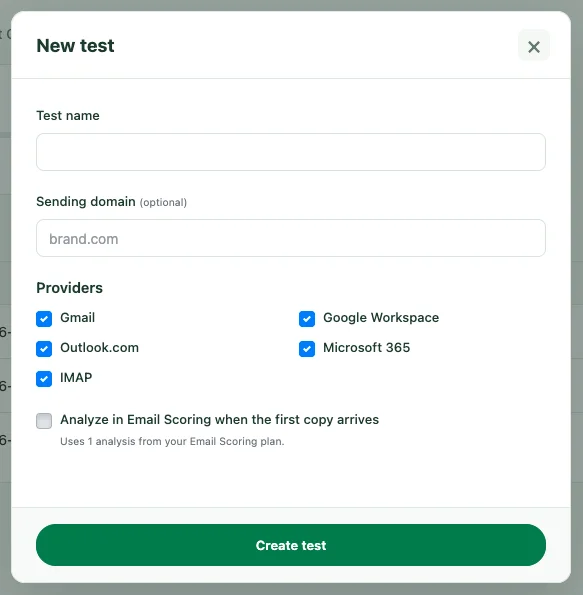
- Create the test. In the dashboard, under Deliverability → Inbox placement, give it a name, enter the sending domain and choose the providers: Gmail, Google Workspace, Outlook.com, Microsoft 365 and other providers over IMAP. If you want, turn on the automatic Email Scoring analysis of the first copy that arrives.
- Send from your own platform. The dashboard shows the list of seed addresses. Send the campaign to them one by one or in batches of up to 25, never in BCC. We don’t send anything on your behalf, so the result reflects your real reputation, content and setup.
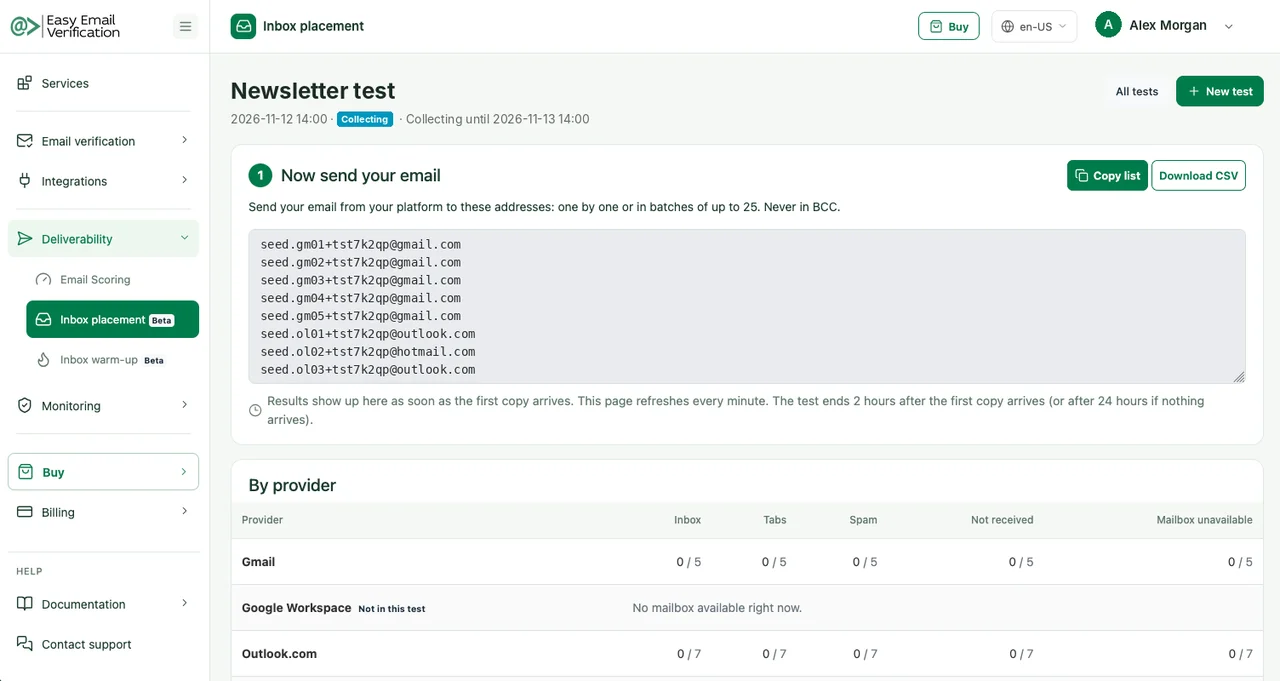
- Wait for the copies. Results appear as soon as the first copy arrives. The test ends 2 hours after the first copy, or after 24 hours if none arrives.
- Read each provider on its own. The problem is usually with one provider, not with all your email.
Test the exact message you plan to send, from the same sending domain and platform. A test sent from a different tool or with a simplified template tells you about that tool and that template, not about your campaign.
Example: how to read an inbox placement test result
The image below is an illustrative example with fictional data, built in the dashboard’s report format: a newsletter sent to 12 seed mailboxes, 5 at Gmail and 7 at Outlook.com.
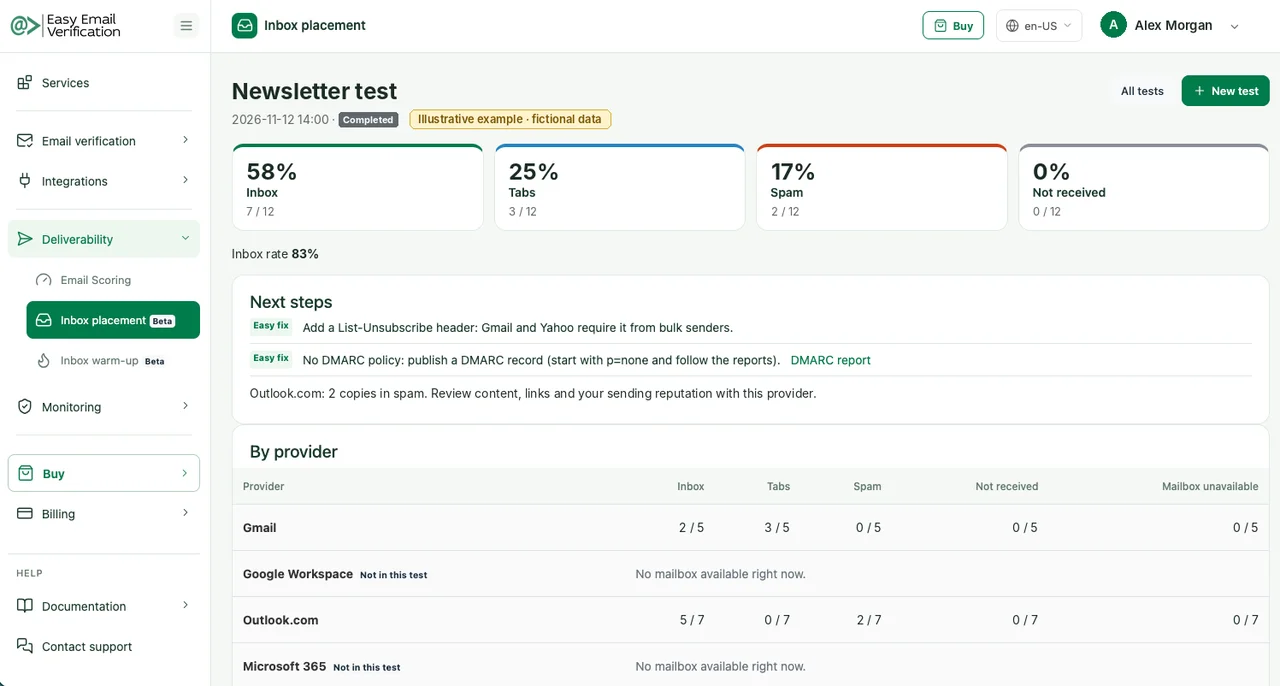
How to read it:
- Counts are copies, not recipients. Each number is “copies in that folder / seed mailboxes at that provider”. The 12 seed mailboxes are the denominator, including any that received nothing.
- Inbox rate adds inbox and tabs. In the dashboard, the inbox rate is the share of copies that reached the inbox or a tab rather than spam. In the example, 7 + 3 out of 12 make 83%.
- No sign of trouble at Gmail. In this example, all five Gmail copies reached the inbox or the Promotions tab, which is expected for a newsletter.
- Outlook.com is worth investigating. Two of seven copies went to spam. That’s a signal to look into at that provider, not a conclusion about Outlook as a whole.
| Destination | Gmail | Outlook.com | Total |
|---|---|---|---|
| Main inbox | 2 | 5 | 7 |
| Promotions | 3 | 0 | 3 |
| Spam | 0 | 2 | 2 |
| Not received | 0 | 0 | 0 |
| Total | 5 | 7 | 12 |
And the 83% doesn’t mean 83% of your customers will get the campaign in their inbox: it’s the result of 12 test mailboxes at one moment.
In a real report, the dashboard also lists each mailbox with its country, account age, delivery time and the SPF, DKIM and DMARC result of that copy, plus the sending server’s IP and domain with a blacklist check.
The Promotions tab is not spam
When a newsletter lands in Promotions, the instinct is to fix it. Usually it doesn’t need fixing: Promotions is still part of the inbox, and people who want your offers look there.
Our view: for marketing email, Promotions is a good result. Tricks to force the main inbox (stripping images, writing like a personal note, hiding the unsubscribe link) tend to cost more in complaints than they gain in opens. Spend that effort on the spam column instead.
The same calm applies to transactional email. Gmail itself tends to put confirmations, receipts, statements and reminders in the Updates tab, and that isn’t a delivery problem. What helps is sending transactional and marketing email from separate addresses or subdomains, so a badly received campaign doesn’t drag password resets and verification codes down with it.
What the test can’t tell you
A seed mailbox has no history with you. It never opened your last ten emails, never replied and never marked you as spam. Real subscribers do, and providers weigh that history. So treat the result as a sample taken at one moment, not as a forecast for your whole list. And a handful of mailboxes doesn’t represent a whole provider.
Personal and business accounts aren’t the same either. A @gmail.com address doesn’t behave exactly like a company domain on Google Workspace, nor Outlook.com like Microsoft 365, because business accounts can have their own filtering rules set by an administrator. If you sell to companies, include Google Workspace and Microsoft 365 in the test.
Compare tests of the same domain over time, and when you change something, change one thing per test: the template, a link domain, the sending platform. Otherwise you won’t know which change moved the result.
When it’s worth testing
You don’t need to test every send. These are the moments where we would:
- before a large campaign, such as Black Friday or a launch;
- after changing the sending platform, domain, IP or template;
- when opens or clicks drop and nothing in the content explains it;
- when one provider starts generating complaints from customers.
If the test says spam
The test gives you evidence, not a verdict. It shows where the message landed, but the provider doesn’t say why. Start with what takes minutes to check and move toward what takes more work:
- Authentication. Look at SPF, DKIM and DMARC for each copy in the test itself. If any failed, fix that before touching the content. The DMARC Monitor shows which platforms sending as your domain are failing. Correct authentication is a prerequisite, not a guarantee of the inbox.
- Unsubscribe. For promotional bulk mail, Gmail and Yahoo require an easy way to unsubscribe. At Gmail, one-click unsubscribe follows RFC 8058, with specific headers. Check that your sending platform supports it; without an easy way out, people who no longer want your email hit “spam”.
- Blacklists. Check the IP and domain with the Blacklist Monitor. A public listing is a warning sign, but it doesn’t prove that’s why Gmail or Outlook filtered you.
- Complaints and list. A high complaint rate, old or unverified addresses and mailing people who haven’t opened anything in months weigh more than any word in the subject line. Segment by engagement and clean the list; the steps are in how to clean a 50,000-contact email list.
- Content and volume. Run the message through Email Scoring to review links and content, and avoid sudden jumps in volume: grow gradually and watch complaints, bounces and inbox placement.
Frequently asked questions
Does Gmail’s Promotions tab count as the inbox?
Yes. Promotions is a tab of the inbox, not a spam folder. In the Easy Email Verification inbox rate, copies in tabs count together with the main inbox.
Does an inbox placement test guarantee my customers will receive the campaign?
No. It shows how a sample of mailboxes handled that message at that moment. Your real recipients have their own history with you, and their result can differ.
What’s the difference between an inbox placement test and Email Scoring?
Email Scoring analyzes the message (content, links and authentication) and estimates the risk. An inbox placement test actually sends the message and shows where it landed at each provider. One anticipates problems, the other confirms the result.
Next step
Before your next campaign, create a test in the Inbox Placement Test, send to the seed addresses and read the result one provider at a time. Creating an account is free, but the Inbox Placement Test is part of the paid deliverability plans. To check a single address before sending, use the free email checker.
Related posts
- Black Friday email marketing 2026: how to keep your emails out of spam
- Email marketing in spam? Tips and solutions to avoid this problem
- How to clean a 50,000-contact email list before a campaign
See all posts on the Easy Email Verification blog
Illustration by Storyset