
You have a list of 50,000 contacts, part of it untouched for months, and a campaign on the calendar. If a share of those addresses no longer exists, you will find out through bounces, after the send, with your domain’s reputation at risk. Bulk email verification answers the question before you send, and nobody receives a thing.
It is one step of list cleaning, not the whole job: permission, unsubscribes and engagement are still your call. To show what verification does, we ran a small 32-line file on Easy Email Verification, built with the problems real lists have. Only 3 addresses came back valid. After the test, we show how to apply the same process to 50,000 contacts.
Before bulk email verification: prepare the file
A few steps save credits and rework:
- Put everything in one file. If your contacts live in a CRM, a sending tool and a few spreadsheets, export one CSV with an email column. Keep each contact’s source and last interaction date with it. They help with the borderline cases later.
- Drop people who opted out. Unsubscribes and spam complainers stay off the list, even when the address is valid. Verification tries to tell whether an address can receive email, not whether the person wants yours.
- Flag the old contacts. Anyone who hasn’t engaged with your campaigns in over a year deserves a segment of their own, even if the address checks out.
- No need to dedupe by hand. EEV removes duplicates on its own and doesn’t charge for repeats. In the test below, the same address repeated, once in capital letters, was counted once.
The test: 32 lines, 28 charged
The test list had duplicates, lines that aren’t emails, typos in the domain, mailboxes that don’t exist, disposable addresses and team addresses. All of them made up or on our own domain. We ran it as a bulk job on November 12, 2026. Results came back in a few seconds, and the account balance dropped by exactly 28 credits.
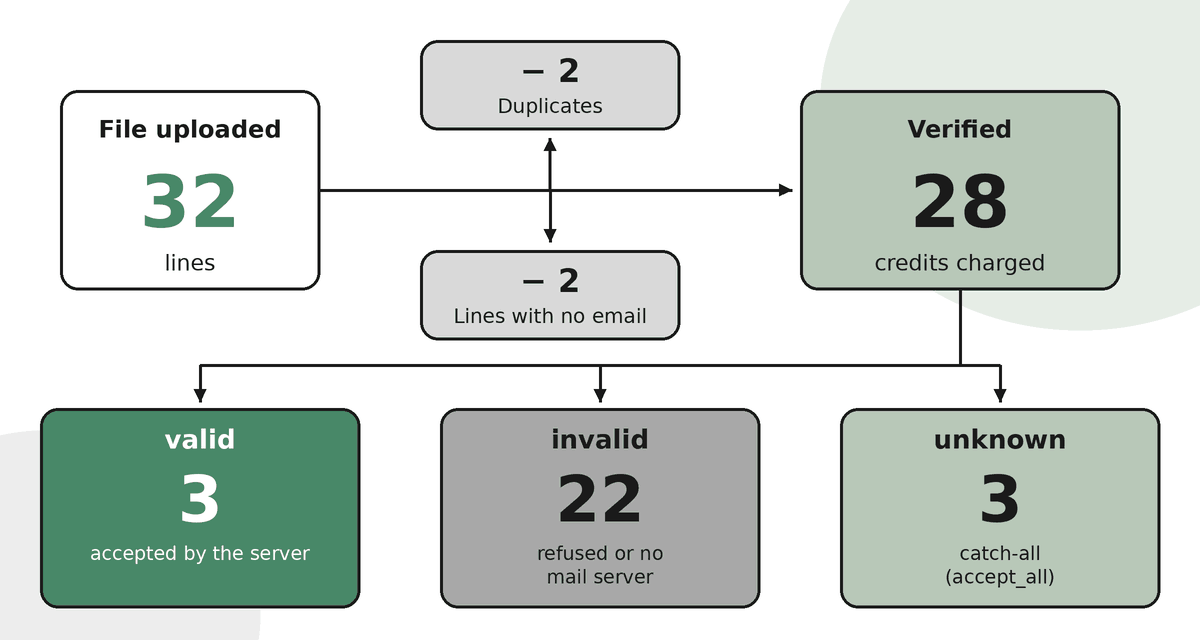
| Step | Lines | What happened |
|---|---|---|
| File uploaded | 32 | |
| Duplicates removed | 2 | The same address repeated, once in capital letters |
| Lines skipped | 2 | One blank line and one name with no email |
| Verified (charged) | 28 | |
valid |
3 | Accepted by the server, all with safe_to_send: true |
invalid |
22 | 12 mailboxes refused by the server (rejected_email) and 10 with a domain that doesn’t exist, is misspelled or has no mail server |
unknown |
3 | Catch-all domains (accept_all): mailinator.com, guerrillamail.com and hotmial.com |
Three addresses came back valid with safe_to_send: true. The 22 were classified as invalid, and the 3 unknown ones got no conclusive answer. A real list will look very different: this one was built to be full of bad cases.
The results file has one row per address. Five rows from this test’s CSV:
| result | reason | safe_to_send | did_you_mean | |
|---|---|---|---|---|
| support@easyemailverification.com | valid | accepted_email | true | |
| zq7x.no.such.box.2026@gmail.com | invalid | rejected_email | false | |
| pedro.alves@yaho.com | invalid | invalid_mx_record | false | pedro.alves@yahoo.com |
| contato@no-such-domain-eev-2026.com.br | invalid | no_mx_record | false | |
| test@mailinator.com | unknown | accept_all | false |
What the test shows
A well-formed address may not exist. Made-up addresses at Gmail, Hotmail, Outlook, Yahoo, iCloud and three Brazilian providers came back as rejected_email: the domain receives email, but its server refused that mailbox. That is what happens when an account is closed or a work address is shut down after someone leaves the company. A mailbox that is merely abandoned is a different case. It can keep existing and accepting messages nobody reads, and verification will report it as valid.
A typo gets a suggestion, not a fix. gmail.con, yaho.com and gmial.com came back invalid, with a did_you_mean suggestion (gmail.com, yahoo.com). If the contact matters, confirm with them before you change the address.
Catch-all doesn’t confirm the mailbox. mailinator.com, guerrillamail.com and hotmial.com accept any address, whether the mailbox exists or not. That is why the result is unknown with accept_all, never valid. Addresses at temporary email services, such as mailinator.com, guerrillamail.com and 10minutemail.com, also carried the disposable flag. In a campaign list, they stay out whatever the result.
Valid isn’t permission. safe_to_send: true means the address exists and shows no technical risk signal. It doesn’t say whether the person agreed to get your campaign or still cares about it.
What to do with each group
| What came back | What to do |
|---|---|
valid with safe_to_send: true |
Can go into the campaign, if the contact gave permission and fits the segment. |
invalid |
Suppress it in your sending tool. If the contact has a purchase history, keep the CRM record and just stop sending. |
unknown from accept_all |
Separate segment. Send only to contacts with permission and recent interaction, such as a click or a reply in recent months. Don’t treat it as a confirmed address. |
unknown from a temporary failure (timeout, temporarily_blocked) |
Verify again later. These answers don’t use a credit. |
disposable |
Out of the campaign. |
Not sure whether a domain on your list is catch-all? The free catch-all domain test tells you right away.
With 50,000 contacts in practice
The process is the same as the test, at a different scale:
- Upload the CSV to the dashboard, on the bulk verification screen. Above 10,000 lines, that is the simplest route. Duplicates and lines that aren’t emails are removed before you are charged.
- When the job finishes, download the results CSV: one row per address, with result, reason, signals (
disposable,role,accept_all),safe_to_sendanddid_you_mean. - In a spreadsheet, build the segments from the table above using the
resultandreasoncolumns. - Update your CRM and sending tool using the email address as the key: tag each contact with its result instead of importing the CSV over your records. Invalid and disposable addresses go to the suppression list, valid ones to the campaign segment and catch-all to a segment of their own.
Each unique address verified uses one credit, catch-all included, because the server answered. The exception is temporary failures, such as a timeout or a temporary block, which don’t use a credit. A list of 50,000 unique addresses costs at most 50,000 credits.
Cleaning isn’t enough: send in stages
Our take for a list this size: don’t send the whole campaign on day one, even after verification. Start with contacts whose recent interaction you can confirm, such as a click, a reply or a purchase. Opens count for little, because Apple Mail and other clients load messages automatically to protect privacy. Watch bounces, complaints and server responses on the first sends, then widen gradually.
Verification cuts bounces, but it doesn’t catch everything, and it doesn’t rebuild the reputation of a domain that went quiet for months and suddenly sends 50,000 messages. Spam complaints count: Gmail recommends keeping the spam rate reported in Postmaster Tools below 0.1% and never reaching 0.3%, as stated in the Gmail sender guidelines.
After the campaign
If a hard bounce still shows up, suppress the address and check where it came from. See, for example, whether it entered through a sign-up form with no validation.
Lists age: people change jobs, companies shut down mailboxes, idle free accounts get deleted. Verify again before every big send if the list is more than three months old, and verify new contacts at sign-up, with the API or with the ActiveCampaign, Mautic and Zapier integrations on the integrations page.
Verify your list
Before you send to 50,000 people, find out which addresses can receive email, which ones should leave the list and which ones need a closer look. Upload your file to bulk email verification and download results ready to import into your sending tool. To check a single address, use the free email checker.
Related posts
- What is bounce, and how to eliminate it from your email strategy?
- Black Friday email marketing 2026: how to keep your emails out of spam
- Email marketing in spam? Tips and solutions to avoid this problem
See all posts on the Easy Email Verification blog
Illustration by Storyset.